Track Time on Tasks. Plan With Real Numbers.
One-click timers show how long each task really takes, so you can estimate the next job from real data and stop overcommitting your team.
Key Benefits
One-Click Timers
Start and stop a timer on any task with a single tap. The time is logged to that task automatically.
Reports by Person and Project
See hours by person and by project for any date range, then export reports for client billing.
Where Time Goes
See which projects and kinds of work take the most time, so you can plan around it.
Daily, Weekly, and Monthly Views
Break hours down by day, week, or month to spot busy stretches before they become a problem.
Optional Time on Each Task
Track time where it helps and skip it where it does not. No task requires a timer.
Linked to the Task
Every entry belongs to a specific task, so you see exactly how long each piece of work took.
How Timers Work
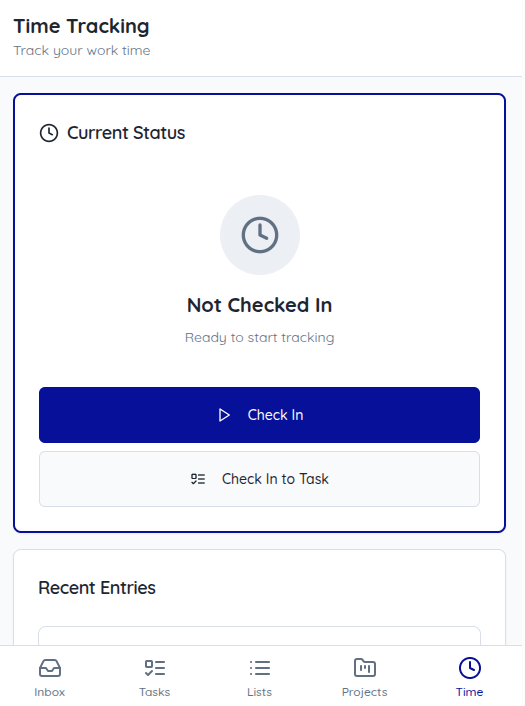
Open any task and start its timer with one click. When the work is done, stop it, and Finitu saves the entry with its start and stop times against that task. You can also check in to a task from the Time screen, or check in by scanning the QR code posted for a task or a location, which starts the timer for you.
Timers are optional. Use them on the jobs you want to measure, like a unit turnover, a machine inspection, or a client deliverable, and skip them on quick to-dos. Add optional location to any time entry.
Reports by Person, Project, and Date Range
Time reports show hours by person and by project for any date range, broken down by day, week, or month. Filter to the people and projects you care about, and drill into the entries behind each total.
Export reports to PDF or Excel to share with your team or a client. If you bill clients for your time, export the report for client billing; Finitu records the hours, and your invoicing stays where it is today.
Estimate the Next Job With Real Data
Most schedules are built on guesses. When time is tracked on the tasks themselves, you build a record of how long each kind of work actually takes: how long a turnover runs, how long an inspection takes, how many hours a project phase really needs.
Use that history to quote and schedule the next job, see which work consistently runs long, and say no before your team is overbooked instead of after.
Connected to the Task on Your Board
Time is not tracked in a separate timesheet. Every entry belongs to a task, so the hours stay with that task as it moves across your Kanban board, and project reports roll them up for you. Managers can see how long the work took without asking.
Frequently Asked Questions
Do I have to track time on every task?
No. Timers are optional. Track time on the work you want to measure or estimate, and leave the rest alone.
How do I start a timer?
Open a task and start its timer with one click, or check in to a task from the Time screen. You can also check in by scanning the QR code for a task or location. Stop the timer when you finish and the entry is saved to that task.
Can I export time reports?
Yes. Reports show hours by person and by project, broken down by day, week, or month for any date range, and you can export them to PDF or Excel.
Can I use tracked time for client billing?
Yes, by exporting reports for client billing. Finitu records and reports time on tasks; it does not create invoices.
Does time tracking record location?
Only if you want it to. Location is optional: when it is allowed, Finitu records where a timer was started and stopped. Accounts can also record location periodically while a timer is running, and admins can turn that off.
Ready to Get Started?
Start your 60-day free trial today. No credit card required.